
Calendar Bookmarks
Colored tabs on your Daily view to toggle calendars with a tap, focus on one, or flip to Solo mode.
A busy day view is usually a calendar problem: the shared family calendar, the team calendar, the subscribed sports schedule, all shouting at once. Calendar Bookmarks put colored tabs in the right margin of your Daily view so you can show and hide individual calendars with a tap, without ever opening settings.
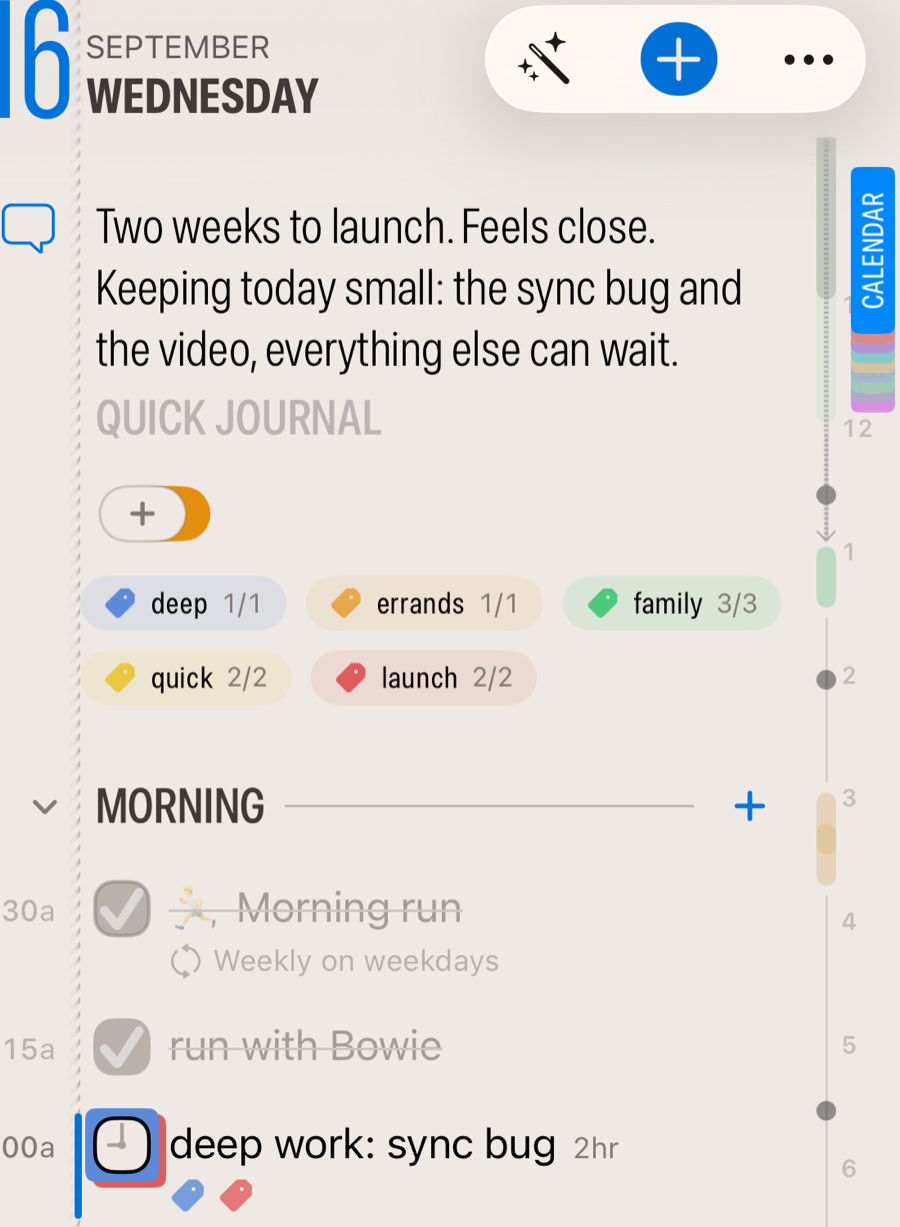
The bookmark bar
Each bookmark is a small colored tab labeled with its calendar's name. Tap one to toggle that calendar on or off for the day you're viewing. Active calendars show in their full color; hidden ones fade back.
Swipe down on the tabs to collapse them into a compact deck when you want the margin quiet; swipe up to expand them again. When the deck is collapsed, the margin's hour ruler and time strip get the room instead. (If the bar is collapsed, the first tap expands it.)
Solo mode
Turn on Include Solo mode in Bookmark bar in the Calendar settings and a SOLO tab appears above your calendars. One tap shows only your own editable calendars and hides the shared and subscribed noise. Tap it again to bring everyone back.
What's Next: one calendar at a glance
Long-press a bookmark (right-click on Mac) to open its What's Next popover: that calendar's events for the next six months, grouped by day with a countdown in each header ("Thursday July 17, in 4 days"). The list scrolls, and very busy calendars show their next 30 event days. Below the list, quick actions:
- Only shows just this calendar, hiding all others; All restores them
- Make Default sets it as the default calendar for new events
- The + button adds an event straight to this calendar
- The gear opens the full Calendar settings
Choosing your bookmarks
Pick which calendars appear as bookmarks in the Calendars configurator. The bar holds up to eight tabs, your default calendar first, so keep it to the calendars you toggle often.
Related: Calendar & Reminders · Your Daily Page · Customize Your Daily