
The Planner
Zoom out from a single day to a week, a month, or the whole year: drag tasks across dates and paint runs of days with color highlights.
The Daily tab is one page at a time. The Planner tab is the wide view: the same tasks, reminders, and events spread across a week, a month, or a whole year, so you can plan past today without losing the shape of it. Think of it as the fold-out spread at the back of a paper planner.
The Planner is one of the tabs you can show or hide in Customize, alongside Journal, Lists, and Notes.
Three ways to zoom
The header names the layout you're in: Weekly, Monthly, or Yearly. Swipe across the name to page straight to the next layout, the way you'd flip between pages, or tap it to open the picker, where each layout appears as a little paper card sketching what that view looks like: the week's facing pages, the month's long day list, the year's grid of painted squares. Pick a card to change how far you're standing back. The first time you open a layout it lands on the current week, month, or year; after that each layout remembers where you left it, so coming back from another tab or another layout puts you on the same page. Tap the Planner tab again, or use the date jump, to return to today.
The pill at the bottom works like the one in Daily, stepping through weeks or months instead of days: each week shows its first day over its month (4 over OCT), each month its name over its year (OCT over 2026). Tap a neighbor to go there, drag to browse, tap the one in the middle to open the whole month's weeks (or half a year of months), and touch and hold to pick a date from the calendar. When you've wandered off, a Today button hangs off the pill to bring you back. In Yearly the bar holds your highlights instead.
Weekly comes in three styles, chosen right under its card. Timeline sets the days side by side, each with its hours above its tasks. 2 Page lays the week out as facing pages, the way a paper planner prints it, and is how Weekly starts out; it's also where the Planner opens the first time. 1 Page runs the whole week down a single column instead. They show up as small cell diagrams (three split columns, three and four days across two pages, seven down one), and the Planner remembers which you last used, so swiping back to Weekly reopens the style you left it in.
Yearly has a choice of its own in the same place. Months gives every month its own heading, weekday row and block of weeks, and is how Yearly starts out. Continuous runs the weeks together with no break at all: one weekday row sits above the whole year and the days scroll under it, the months are named down the right margin, and a fine rule steps across the grid where one month turns into the next. Alternating months carry a faint tint, with the current month left clear, so each month still reads as a block. On an iPad or a wide Mac window the days grow to use the extra room. It fits about half again as many weeks on a phone screen, which makes it the one to pick when you want to see a season at a time rather than a month.
The same popover has a second tab, Content, for the kinds of things a day can carry: tasks, reminders, habits, markdown tasks, calendar events, all-day events, and the weather line. Tap one off and that kind disappears from every Planner mode, so you can plan a week of work without habits in the way, or hide all-day banners when they crowd the days. Two presets sit below the list: All brings everything back, and Just Events turns the Planner into a calendar-only view. Your choices are remembered between launches.
Narrowing the grid with Lens
The pinwheel button beside the layout picker is Lens, the same one Daily has, and the Planner follows its settings. Calendars you switch off in Lens leave the Planner too, Solo keeps just your own calendars, Tasks and Habits switched off take those kinds off the grid, and focusing a tag shows only the items carrying it. There's one set of settings for both tabs, so whatever you narrow on Daily is already narrowed when you flip to the week.
Lens follows you through all the modes. In Yearly it trims the small event markers and each day's popover, while your painted highlights stay put. When a tag is focused, the center of the Lens pinwheel fills with its color, so you can always see why the grid looks thinner. Its ribbons grow with each calendar's bookings for the whole week, month, or year on screen, so you can see at a glance which calendar is taking up the period.
With weather turned on in Settings, each upcoming day opens with a single forecast line above its tasks, a temperature and a few words in the style of the Broadsheet dateline. It covers the days the forecast reaches (about ten out), and the Content tab's Weather tile turns it off if you'd rather not see it.
Weekly as a timeline for each day
The Timeline style gives every day of the week its own column. The top half of a column is the day's hours, from the time your day starts to the time it ends (set in Settings), with events and timed tasks drawn as blocks where they fall. The bottom half lists the rest of the day: untimed tasks, all-day events, and anything timed outside those hours, so nothing on the day goes missing.
Drag a task from the bottom half up into the hours to give it a time. Like on the Daily Timeline, an untimed task gets that time (Undo takes it back) and a task that already has a time moves to the new one. Drag a block back down to the list to take its time off, or across into another day's column to move it there. Tap a block to edit it.
You see as many days as fit: two or so on iPhone, more on a wider screen, the whole week on a big Mac window. Scroll sideways through the week's days, and use the week pill at the bottom, the date jump, or the Planner tab to move to another week.
Weekly on two pages
The 2 Page style is the week as a paper planner would print it: two facing pages, Monday through Wednesday on the left and Thursday through Sunday on the right. The split is fixed to a Monday start, the way the classic inserts have it, whatever your region sets as the first day of the week.
On iPad and Mac you see the open spread, both pages side by side with a fold down the middle, and a swipe turns to the next week. On iPhone (or a narrow window) you get one page at a time: swipe from the left page to the right, swipe again and you're on the next week's left page. The pages run without a header, since the week pill at the bottom already names the week. A page with a crowded day scrolls down on its own.
The days themselves work like day cells everywhere in the Planner: tap open space to add a task, and drag tasks between days (across the fold too). Menus split by column here: touch and hold the date column (right-click on Mac) for the day menu, while each task and event row carries its own menu, the same one you get on its row in Daily. Each day keeps its untimed checklist at the top and its timed agenda below a rule, with start times set back in the date column. All-day events open the day as slim banners in their calendar's color, and on today a small mark in your accent color shows where the current time falls in the agenda. A day's highlights show as small color bars at the bottom of the date column, and where the spread has a header (on Mac), it carries the week number. The filter follows along here too, like in the other modes.
Weekly on one page
Switch to 1 Page and weeks run across the screen, one column each, and you scroll sideways to reach the ones ahead or behind. Each column stacks its seven days down the page, and every day shows what's on it: calendar events, reminders, timed and untimed tasks, and the habits you're keeping (an everyday habit stays out of the way to keep the column readable).
- Tap a day's heading to open that date in the Daily tab.
- Tap any open space in a day to add a task there, already dated to that day.
- Drag a task or reminder from one day onto another to move it, the quick way to shove a slipping task forward a few days.
- Touch and hold a day (right-click on Mac) for a menu: a new task, jump to that date, open its journal, or toggle a highlight on the day.
Monthly
The same grid, a month to a column: a compact run of the month's days you scroll through, with the same tap-to-open, add-a-task, and drag-to-move a day cell gives you in Weekly. It's the altitude for "sometime next month" work, where the week is too close and the year too far.
Yearly: a year in highlights
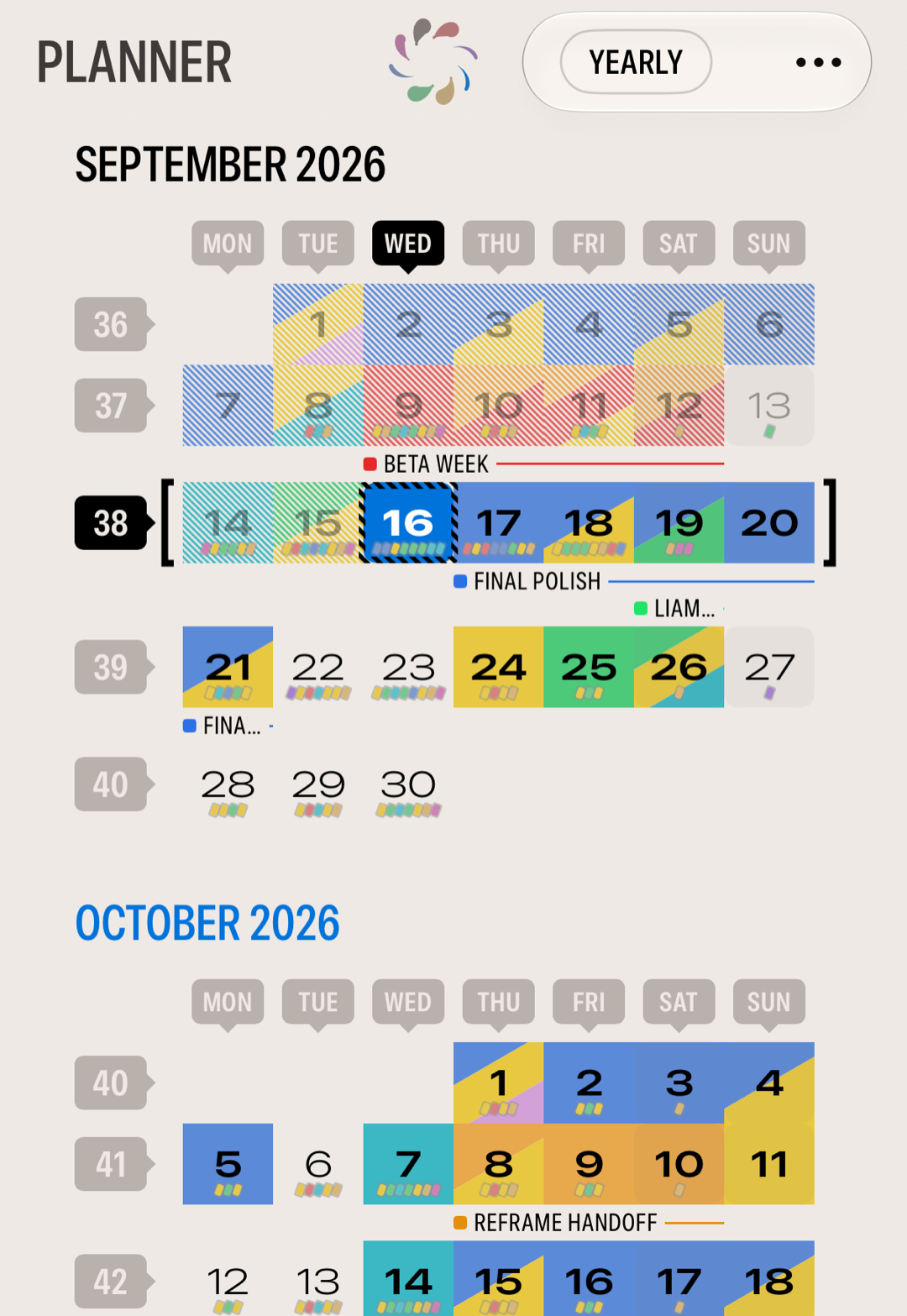
Yearly lays the whole year out as a grid of days, and its job is color. A highlight is a named color you paint across days: a green "vacation", a red "deadline crunch", a blue run of travel. Painted onto the grid, the shape of your year becomes something you can see from across the room.
Yearly comes in two layouts, Months and Continuous, chosen under its card in the layout picker. Everything below works the same in both.
The grid opens on last month and runs a few years ahead, so what you're planning is always in front of you. To look further back, tap Load 6 earlier months above the first month. It pulls another half year of history in, and you can keep tapping to walk back as far as you've painted.
You start with a blank palette. Tap Add a Highlight, give it a name (optional) and a color, and it's ready. To paint, select a highlight in the bar along the bottom, then mark days:
- Tap a day to color it.
- Tap a week number to color the whole week, or a weekday heading to color every Monday (or any weekday) in that month. (The Continuous layout has one weekday row for the whole year rather than one per month, so there its headings are labels only.)
- Swipe across a row to paint a run of days in one stroke. Start the swipe on a day that already has the highlight and the stroke erases the run instead, so the same gesture paints and clears.
Select a highlight and the year narrows to it: every day carrying it fills solid, and the rest fade back, so a single color's run reads clean across the months. A day can hold more than one highlight, shown as diagonal stripes when nothing's selected. To see or clear a single day, tap it with no highlight selected: a small popover lists the day's tasks and lets you toggle its highlights or clear them all.
These day highlights color whole days on the calendar. They're separate from tags, which mark individual tasks, habits, and notes. Today's highlights also appear in the Highlights section of your Daily page, where you can toggle them for the day or add a new one without leaving the page.
Captioning a run of days
Touch and hold a day (right-click on Mac) for a menu. On this day opens the day popover described above. Highlight Caption labels a run of color: pick one of the day's highlights, type a few words, and the caption appears just below that stretch, "France" under a week of travel or "deep work" under a fortnight of blue. A small square in the highlight's color marks the caption, and when the run is longer than the text, a thin line in that color carries on to the end of the run. It covers every day the highlight reaches to the left and right of where you set it. When a highlight is selected in the accessory bar, its uncaptioned stretches also show a blank square-and-line caption row; tap one to add its caption directly.
The caption stays anchored to the day you set it on. Unhighlight that day and the caption goes with it; unhighlight a day in the middle and the run splits, with the caption staying on the side that still holds its day. When runs overlap, their captions stack below the week.
Captions follow you to the Daily page as well: in the Highlights section, a highlight whose run carries a caption shows it under its name, so a glance at the day tells you it's day three of "France".
Highlights on your calendar
When you add a highlight, you can point it at one of your calendars under Sync to Calendar. From then on, painting that highlight onto a day writes a real all-day event there, named after the highlight, and erasing the day removes it, so a synced "vacation" shows up in every app that reads your calendar. Highlights without a calendar stay inside Finalist.
Your real events can show in the year too: with Show events in Yearly Planner on in Settings (the default), each upcoming day carries small markers in its calendars' colors, so a busy stretch stands out against the highlights.
Calendars in the grid
The Planner honors your calendar choices. Hidden calendars stay hidden here, and a calendar you've set to Show as All-Day (see Calendar & Reminders) contributes its events to the day cells the same way. To keep a calendar's all-day events out of the grid specifically, turn off All-Day in Planner for it in the Calendars configurator.
On Mac and iPad
The wider the screen, the better the Planner reads. On iPad and Mac the mode switcher and the highlight palette live in the toolbar, opening a task in its own window on the Mac, and the extra room lets a month or a year breathe. Reordering and renaming highlights gets explicit up and down controls on the Mac, where lists don't drag.
Related: Calendar & Reminders · Timeline & Time Blocking · Your Daily Page