
Timeline & Time Blocking
See your day as time blocks on an hourly grid: compressed free time, drag to reschedule, a parking lot for loose tasks, and AI plans penciled right onto the grid.
Time blocking turns wishes into plans. When you give a task a time, you're making a commitment to yourself about how you'll spend your hours. The Timeline tab is where that plan takes shape: your day as time blocks on an hourly grid, like the schedule page in a paper planner.
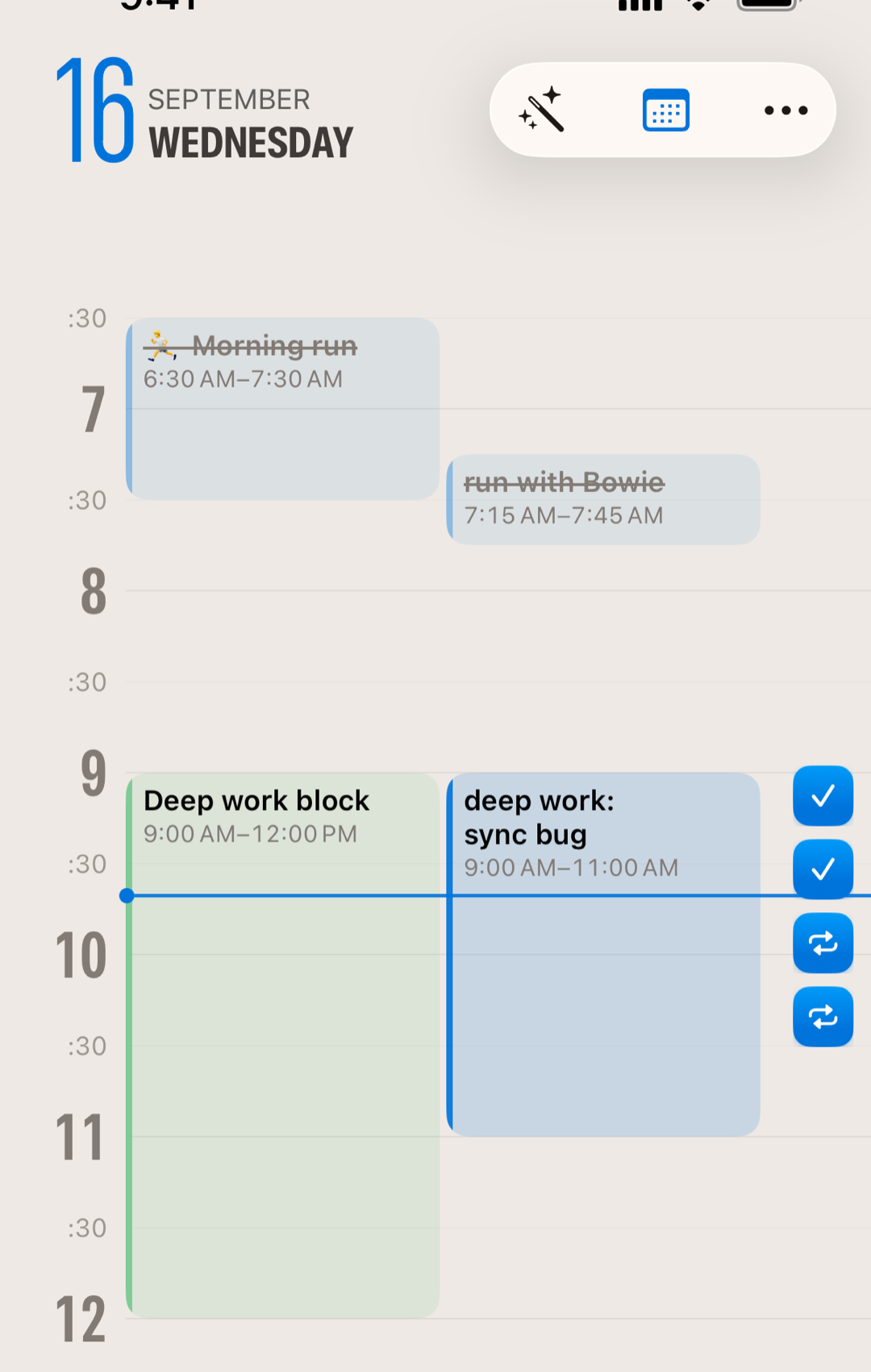
The Timeline tab
Switch to Timeline to see everything with a time on it (calendar events, reminders, and timed tasks) laid out on a vertical grid. Overlapping items sit side by side, the current time shows as a moving line, and the view opens scrolled to right now.
Long stretches of empty time collapse into a compact "free" band, so your real commitments stay close together instead of making you scroll past blank hours. Tap a free band to spread it back into real hours (handy when you want to drop a task somewhere specific in it), and tap the pill in the opened stretch to fold it away again. The start and end of your day always stay expanded, so you can see at a glance where the day opens and closes.
Adding and opening
Tap the hours along the left edge to add a task at that time; the new-task entry opens with the time already filled in, rounded to the nearest fifteen minutes. Tap any block to open what's inside it, whether that's a task, an event, or a reminder.
Selecting, moving, and resizing
Tap a block once to select it. A selected block grows a ring, an ellipsis (⋯) button in the top corner that opens the full task editor, and a handle along its top and bottom edges.
- Move a block by pressing and dragging it to a new time; a badge shows the time as you go. On Mac, press and pull in one motion.
- Resize a block by dragging the bottom handle, with the duration following your finger in five-minute steps. Dragging the top handle moves the start time instead, keeping the end where it is.
- The grid scrolls on its own when you drag near the top or bottom edge, so you can move a block across hours without letting go.
Every change is reversible: an Undo appears after each move, resize, or reschedule.
The parking lot
Tasks without a time wait in a strip along the right edge, out of the way but within reach. Collapsed, it's a column of small chips; tap it to expand and read their titles. On wider screens it stays open.
Drag a task from the strip onto the grid to pencil it in at that time. Penciled times behave like pencil, a light and reversible suggestion rather than a hard commitment. Drag a block the other way, onto the strip, to take it off the timeline: the task stays on your day, just without a time. Calendar events can't be untimed, so they stay where they are.
Accepting or rejecting penciled times
When the day you're viewing has penciled-in times, an Accept button with a pencil icon floats at the top right of the Timeline. Accept turns pencil into ink: each penciled task gets that time for real, so it syncs to your other devices like any other timed task. The chevron next to it opens a menu where you can Reject instead, which erases the day's pencil marks without saving anything. Either way, an Undo appears in case you change your mind.
Times penciled onto Obsidian tasks stay penciled after an Accept: their files only store a date, so a pencil mark is as timed as they get.
Plan My Day, right on the grid
The wand icon in the Timeline header runs Plan My Day. On-device AI drafts a schedule for the day and pencils it straight onto the grid as highlighted blocks, with the rest of the day dimmed so you can read the proposal against your real commitments. Apply Plan keeps it, Clear returns you to an unplanned day, and nothing is committed until you apply. Running Plan My Day from the Daily tab brings you here to review it.
The art of punting
Here's where Finalist eases task anxiety: if a task isn't going to happen today, take it off the timeline or punt it to tomorrow. This isn't procrastination, it's aggressive planning. Every task you punt is a deliberate choice about your priorities, not a personal failure. Better to plan honestly than pretend you'll do everything.
Related: Your Daily Page · Plan My Day · The Daily Rhythm