
Lists
Lists as your planner's divider tabs: pinning to Today, Reminder lists, and list math.
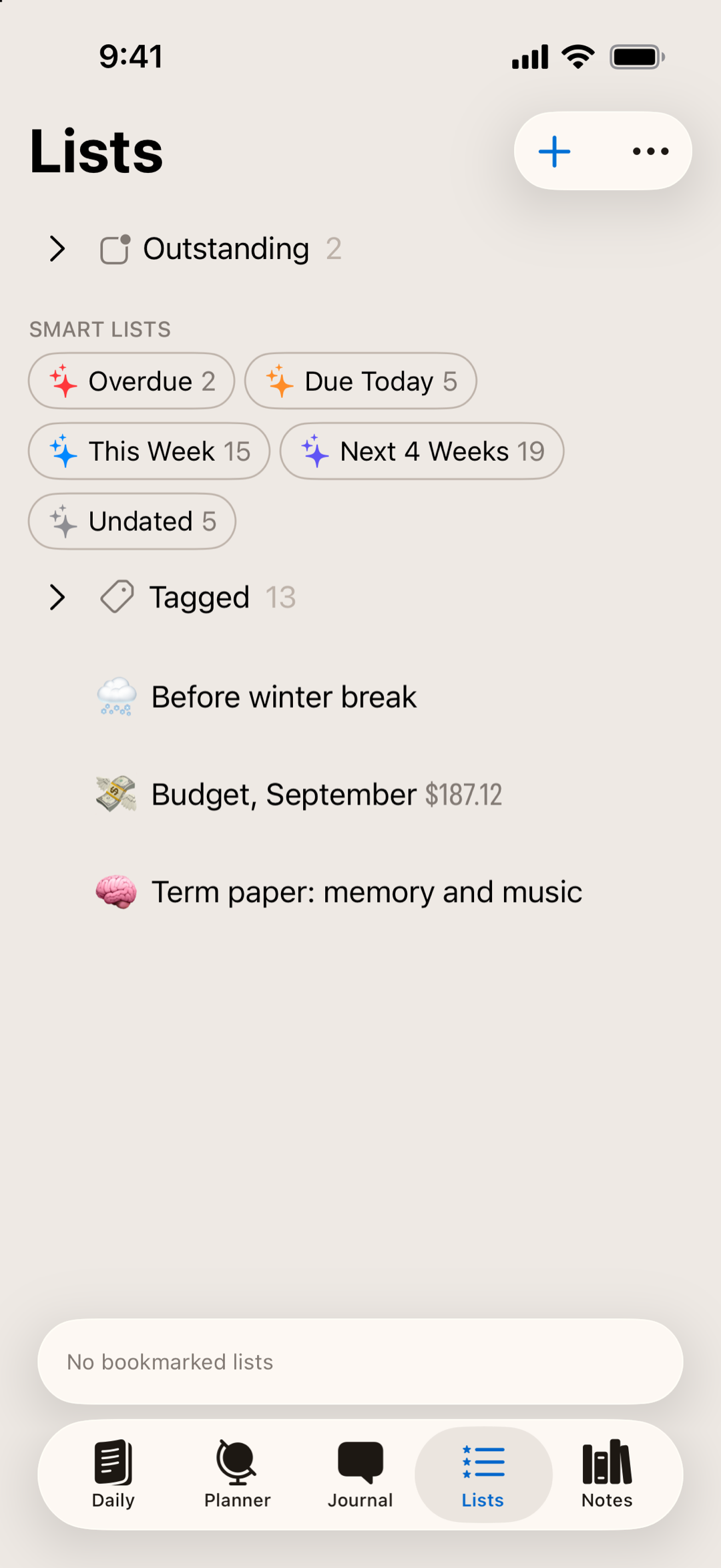
Lists in Finalist work like labeled sections in a binder, a home for everything that isn't tied to a specific day. Create lists for projects, areas of life, or any way you naturally organize: "Work," "Personal," "Someday," whatever makes sense for your life.
Moving tasks between lists
Drag tasks between lists as priorities shift. That "someday" idea that became urgent? Slide it to your active project list, as easy as moving a sticky note. On iPhone, you can also just tap an item to change which list it belongs to.
Pinning lists to Today
Pin your most important lists to appear in your Today view. Any undone tasks from a pinned list show up right inside your Daily tab, but only for today. It's great for time-sensitive yet longer-running lists: packing for a move, coffee shops to visit in a new city, or working through project tasks.
Reminder lists
You can add any private or shared Reminder list to the Lists tab, and treat it like any other list in Finalist. Changes sync back to Apple's Reminders app.
Lists with simple math
Lists can do simple math: enter items with a price or quantity at the beginning or end of the text, and Finalist sums them into a running total. Perfect for:
- Shopping lists with prices ("Milk $4.99")
- Project hours tracking ("Design mockups 3h")
- Expense tracking ("Lunch meeting $45")
The total appears next to the list's name in the Lists tab and below the list itself. Once you start checking items off, the tally splits in two: the remaining amount stays prominent, with the completed portion struck through beside it, so a shopping list counts down as you shop. Numbers at the beginning of the text and numbers at the end are summed as two separate totals, and a currency symbol on the amounts carries into the total.
Sums show up automatically whenever a list has two or more items with amounts. To turn them off, use Hide total sum in a list's menu, or Automatically sum list values in Settings.
Tags live here too
The Lists tab also gathers your tags into a tappable cloud, so a tag works like a lightweight list: tap one to see everything carrying it. Tags themselves (colors, highlighting, focusing your day on one) have their own page.
Related: Tags · Your Daily Page · Tips & Best Practices