
Lens
The pinwheel at the top of Daily and the Planner: see which calendars are busy at a glance, then tap it to choose what the page shows.
Lens is the colorful pinwheel at the top of your Daily page and the Planner. It does two jobs: at a glance it tells you how busy the rest of your day is, and when you tap it, it lets you choose what the page shows. It sits where the old magic wand button used to be, and the actions that button held (Day Review, Capture, Dictate and the rest) are inside Lens now.
Reading Lens at a glance
You never have to open Lens for it to be useful. Each colored ribbon is a calendar your day is showing, and the busier that calendar is, the fuller and longer its ribbon. On today only what's still ahead counts, so the ribbons thin out as the day goes on and a calendar whose events are over shrinks to a sliver. A quick look tells you which calendars are on and which ones still have something coming up.
Past eight calendars, a grey ribbon stands in for the rest. All-day events don't count toward how busy a calendar looks. On the Planner the ribbons describe the week, month, or year on screen instead of a single day.
A few marks show when you've narrowed the page: the center fills with a tag's color while that tag is focused, and a dotted circle in the center means Tasks or Habits is switched off.
What's inside Lens
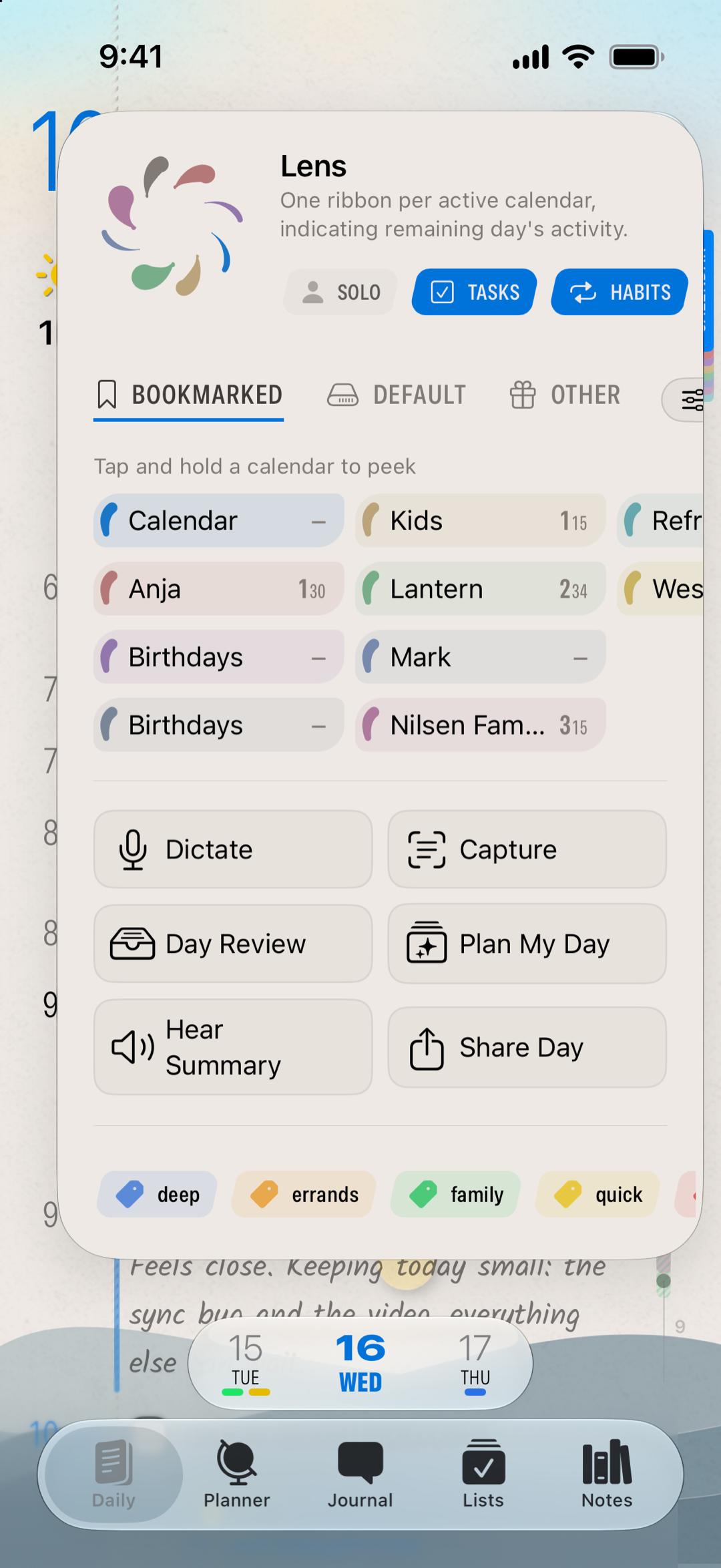
Tap Lens to open it. From top to bottom:
- Solo, Tasks, and Habits, three switches under the larger Lens at the top. Tasks and Habits start on; switch one off to take that kind of item off the page while you concentrate on something else. Tasks covers reminders and markdown tasks too.
- Your calendars, in a grid that scrolls sideways. A strip above it switches between Bookmarked and each of your accounts (iCloud, Subscribed Calendars, and so on). Tap a calendar to show or hide it. Each one that's showing ends with the hours booked in it, or the hours still to come on today. Touch and hold one (right-click on Mac) to see what's next on it. Organize at the end opens your calendar settings.
- Actions for the day you're on: Capture and Dictate, Day Review, Plan My Day, Hear Summary, and Share Day. Dictate, Plan My Day, and Share Day are iPhone and iPad only.
- Your tags, in a row along the bottom. Tap one to focus on it (see below).
Solo: just your own calendars
Solo keeps the calendars that are yours and hides shared and subscribed ones: a partner's calendar, a holiday feed, a team schedule. It's for the moments you want to plan your own time without everyone else's events in the way. Tap Solo again and everything comes back.
You choose which calendars and reminder lists count as yours in the Calendar settings, under Solo Mode. Solo also has a tab on the Bookmark bar if you'd like it one tap away.
Focus on one tag
Tap a tag in Lens and the page shows only the items carrying it, so a busy day reads as just your "Work" plan or just your "Home" one. The Lens center fills with that tag's color as a reminder. Tap the same tag again to bring the whole day back. Focus carries over to the Planner, and the tags row on Daily shares it.
To keep a tag out of the Lens row, open the tag and turn off Show Tag in Lens.
If you'd rather not use it
Lens stays in the toolbar, but it only changes your page when you change something in it. With every calendar you want switched on, Solo off, and Tasks and Habits on, your day shows everything as usual, and the pinwheel quietly works as a busyness gauge.
If the page ever looks emptier than you expect, open Lens: a calendar switched off, Solo on, or a focused tag is usually why.
On the Mac and the Planner
Lens works the same on iPhone, iPad, and Mac. On the Mac it sits in the Daily toolbar (macOS 26 or later); right-click a calendar inside it to peek at what's next. Its actions there are Capture, Day Review, and Hear Summary, and Plan Solo in the menu bar switches Solo on without opening it. The Planner has the same Lens and shares its settings with Daily, so whatever you narrow on one is already narrowed on the other.
More options
Tap the larger Lens at the top of the panel for two options. Style switches between Ribbon, the pinwheel, and Notebook, a fan of paper pages with one page per calendar (the busier the calendar, the more of its page shows). Show Count, off to start with, writes how many tasks and habits are still to do in the middle of the Lens button, counting only what Lens is showing.
Related: Your Daily Page · Calendar Bookmarks · Tags